> For the complete documentation index, see [llms.txt](https://docs.reflag.com/llms.txt). Markdown versions of documentation pages are available by appending `.md` to page URLs; this page is available as [Markdown](https://docs.reflag.com/product-handbook/feature-rollouts/end-user-opt-in.md).

# End-user opt-in

Let end users opt themselves or their company into beta and experimental features

Reflag makes it easy to let end users opt into new, experimental, or beta features.

Unlike regular [access rules](/product-handbook/feature-rollouts/feature-targeting-rules.md), which are controlled entirely by your team, end-user opt-in lets users choose whether they want access. You build the opt-in experience in your product, while Reflag manages opt-in membership and evaluates access.

## When to use it

End-user opt-in is useful when you want experienced or adventurous users to try features that are not yet ready for everyone.

Common use cases include:

* Experimental or beta features
* Early access programs
* Redesigned parts of your product
* A redesigned version of your entire application
* Optional workflows intended for advanced users

For redesigns, opt-in lets users move between the old and new experiences themselves while you collect feedback and continue improving the new version.

## How opt-in affects access

Opt-in works alongside your existing access rules. A user receives access when they match either:

* One of the flag's regular access rules
* An active user or company opt-in

The flag's access setting determines how opt-ins behave:

| Access setting | Behavior                                                                      |
| -------------- | ----------------------------------------------------------------------------- |
| **No one**     | The flag is off. Existing opt-ins are inactive, and new opt-ins are rejected. |
| **Some**       | Access is granted through regular access rules or opt-in membership.          |
| **Everyone**   | Everyone has access, regardless of opt-in membership.                         |

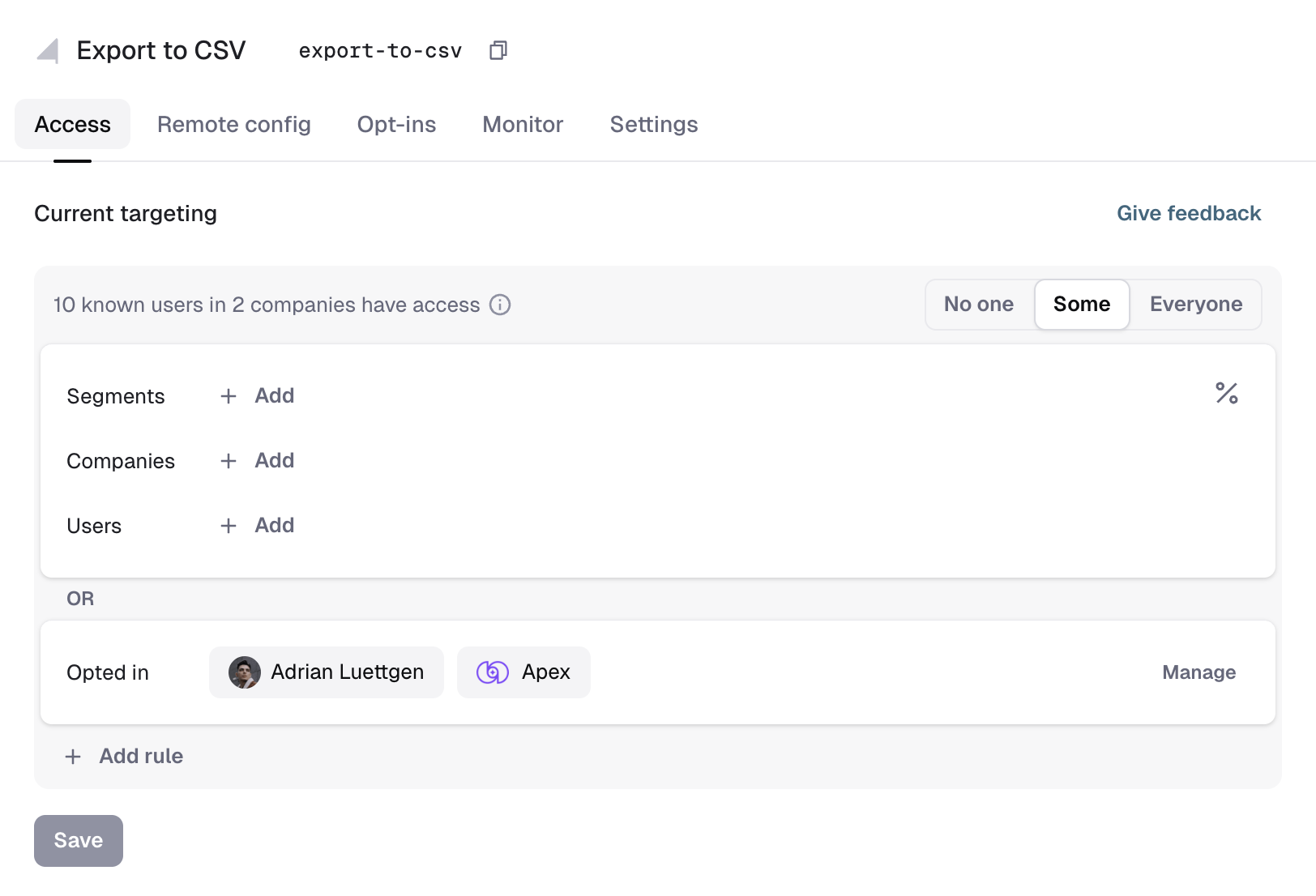
For a feature available exclusively through opt-in, select **Some** and leave the other access rules empty.

<figure><img src="https://2121209168-files.gitbook.io/~/files/v0/b/gitbook-x-prod.appspot.com/o/spaces%2FpgXAy2Cgsm5pON9oJ06m%2Fuploads%2Fgit-blob-f574cf5331cdecd78faf7159dd36df5e42b9d3ae%2Fend-user-opt-in-access.png?alt=media" alt="The Access tab showing opted-in users and companies as an additional access rule"><figcaption><p>Opt-in membership appears separately from regular access rules and is combined with them using OR.</p></figcaption></figure>

## Configure end-user opt-in

To enable opt-in for a flag:

1. Open a non-secret flag in Reflag.
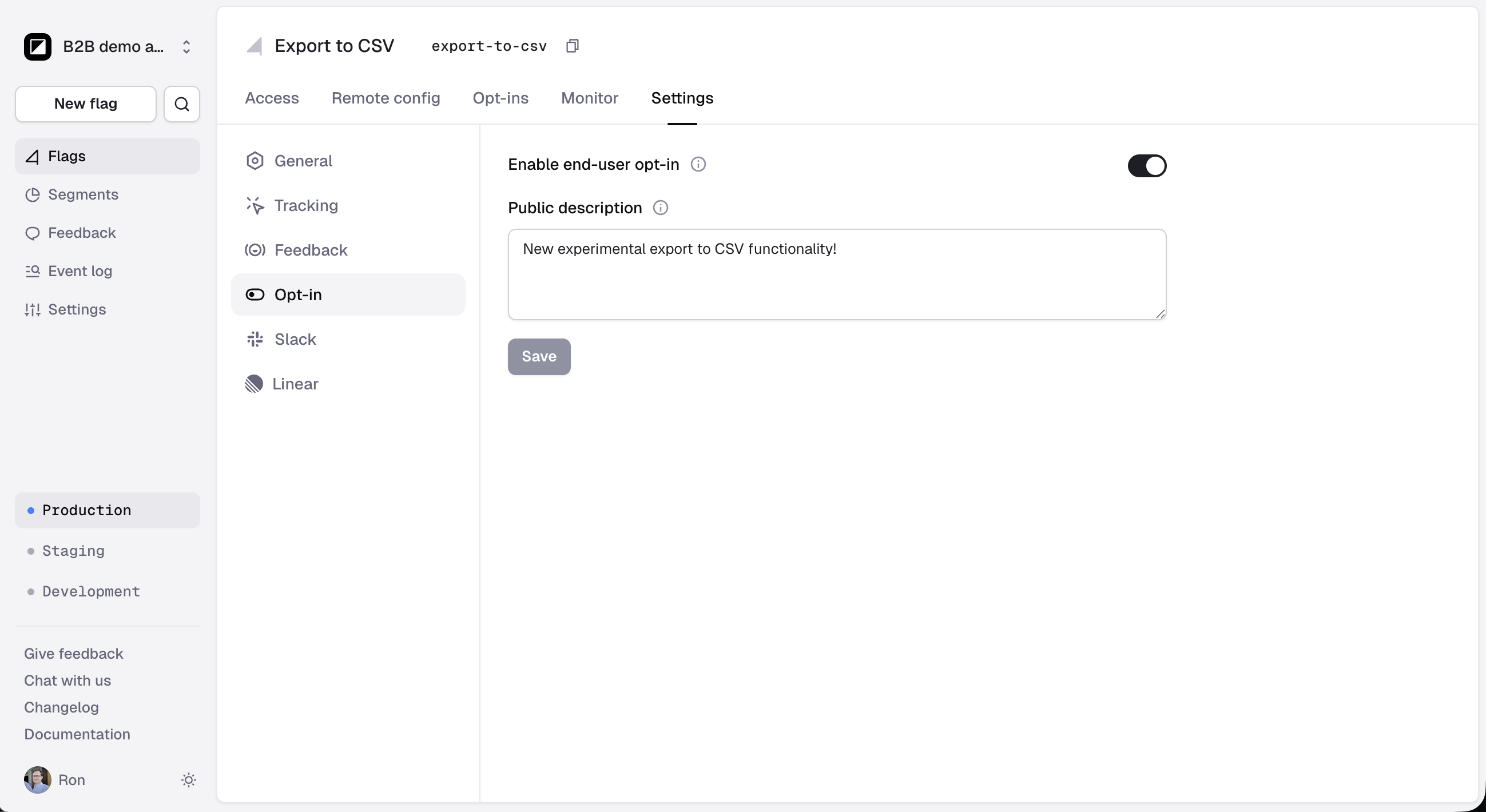
2. Select **Settings**.
3. Open the **Opt-in** section.
4. Enable **End-user opt-in**.
5. Optionally enter a **Public description**.
6. Save your changes.

The public description is exposed through Reflag's client-side SDKs. You can display it in your product's opt-in interface to explain the feature to your users.

<figure><img src="https://2121209168-files.gitbook.io/~/files/v0/b/gitbook-x-prod.appspot.com/o/spaces%2FpgXAy2Cgsm5pON9oJ06m%2Fuploads%2Fgit-blob-1afa16980abe8d0d43517b18418d8f8237c4175e%2Fend-user-opt-in-settings.png?alt=media" alt="Opt-in settings with end-user opt-in enabled and a public description"><figcaption><p>Enable end-user opt-in and optionally add a public description.</p></figcaption></figure>

{% hint style="info" %}
End-user opt-in cannot be enabled for secret flags. Opt-ins are submitted directly from a browser or client using a publishable key, so the flag must be publicly available.
{% endhint %}

Opt-in is enabled at the flag level, but access is configured separately for each environment. In every environment where users should be able to opt in, ensure that **Access** is set to **Some**, rather than **No one**.

When you enable opt-in while the current environment is set to **No one**, Reflag changes its access setting to **Some**.

## User and company opt-ins

Your opt-in interface can let end users opt in at either of two scopes:

* **User opt-in** gives access to one user.
* **Company opt-in** gives access to users evaluated as members of that company.

The scope depends on how you build your opt-in interface. For example, a personal beta-preferences page might use user opt-ins, while an organization settings page might let an administrator opt in the entire company.

User and company opt-ins are independent. A user can be opted in personally, through their company, or through both scopes. Removing one membership does not remove the other.

## View opted-in users and companies

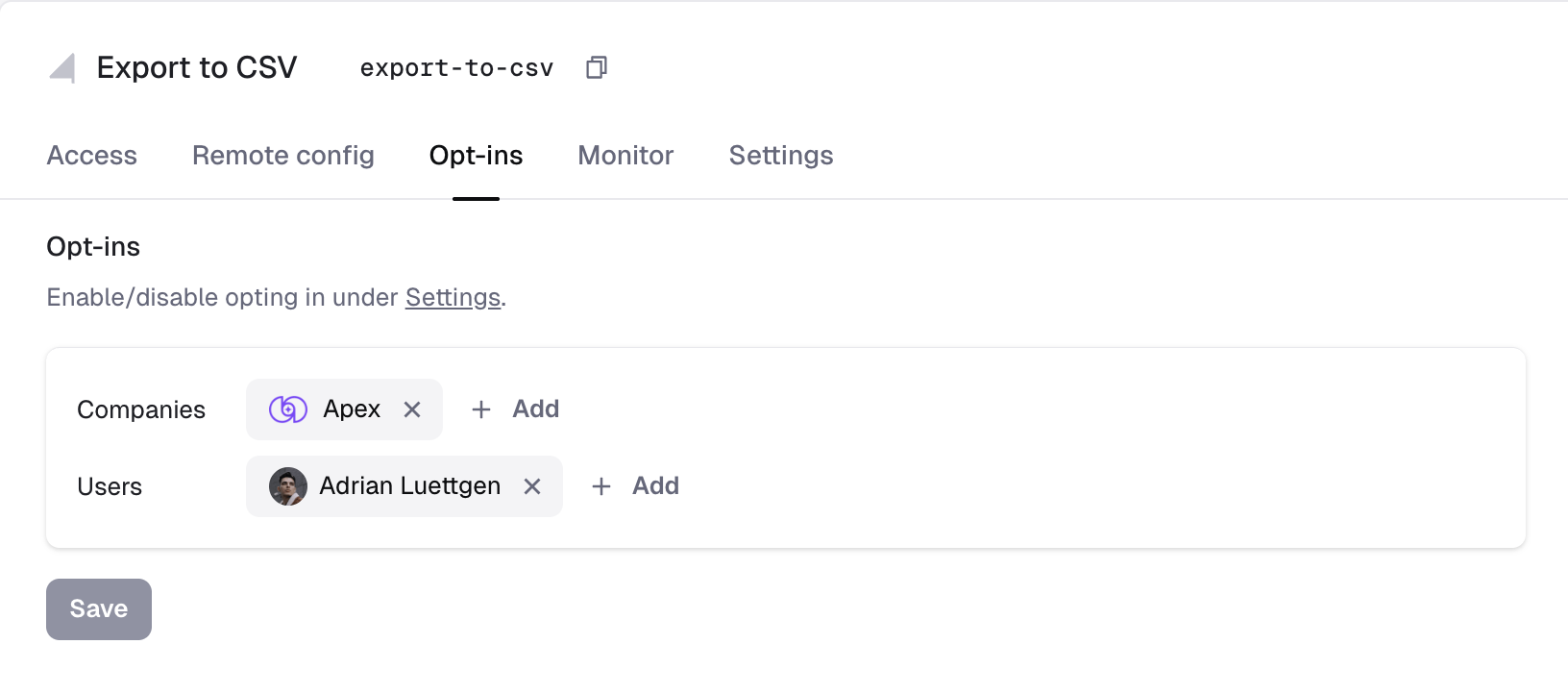
After enabling end-user opt-in, an **Opt-ins** tab appears next to the flag's **Access** tab.

As end users opt in, their memberships appear in two places:

* The **Access** tab shows opted-in users and companies as a separate, read-only access path alongside your regular access rules.
* The **Opt-ins** tab provides an editable list for the selected environment.

The **Access** tab helps you understand the flag's effective audience. Opt-in membership is combined with your other access rules using **OR**, so an opted-in user or company can receive access without matching another rule.

## Manage opt-ins

Use the **Opt-ins** tab to add or remove opted-in users and companies manually.

You can select known users or companies individually. To add a larger audience, open the user or company selector, choose **Import**, and paste IDs separated by commas, spaces, or line breaks.

<figure><img src="https://2121209168-files.gitbook.io/~/files/v0/b/gitbook-x-prod.appspot.com/o/spaces%2FpgXAy2Cgsm5pON9oJ06m%2Fuploads%2Fgit-blob-cb7de030e787226f7fe8402e4b4ee1dabb7f2723%2Fend-user-opt-in-memberships.png?alt=media" alt="The Opt-ins tab for managing opted-in companies and users"><figcaption><p>View and manage company and user opt-ins for the selected environment.</p></figcaption></figure>

Membership changes apply only to the currently selected environment.

## Disable end-user opt-in

Disabling end-user opt-in:

* Prevents new opt-ins from being added.
* Makes existing memberships inactive, so they no longer grant access.
* Retains existing memberships instead of deleting them.
* Still allows existing memberships to be removed from the **Opt-ins** tab.

If you enable opt-in again, retained memberships become active again as long as the environment's access setting is not **No one**.

## Build an opt-in interface

Reflag does not impose a particular end-user experience. You can build a Labs page, beta settings page, organization-level experiments page, or any other interface that fits your product.

See [Beta feature opt-in](/guides/self-opt-in.md) for a step-by-step React implementation using Reflag's SDK hooks.


---

# Agent Instructions
This documentation is published with GitBook. GitBook is the documentation platform designed so that both humans and AI agents can read, navigate, and reason over technical content effectively. Learn more at gitbook.com.

## Querying This Documentation
If you need additional information that is not directly available in this page, you can query the documentation dynamically by asking a question.

Perform an HTTP GET request on the current page URL with the `ask` query parameter, and the optional `goal` query parameter:

```
GET https://docs.reflag.com/product-handbook/feature-rollouts/end-user-opt-in.md?ask=<question>&goal=<endgoal>
```

`ask` is the immediate question: it should be specific, self-contained, and written in natural language.
`goal` is optional and describes the broader end goal you are ultimately trying to accomplish on behalf of the user. GitBook uses it to tailor the answer towards what is most useful for that goal.

The response will contain a direct answer to the question and relevant excerpts and sources from the documentation.

Use this mechanism when the answer is not explicitly present in the current page, you need clarification or additional context, or you want to retrieve related documentation sections.