# Access rules

## What are access rules?

Flag access lets you conditionally enable flags for a company or a user.

Using conditions based on company and user attributes, you can target specific audiences and conditionally enable a flag for them.

By using rollout percentages, you can roll a flag out to only a certain percentage of companies in the group.

You'll find the flag access configuration under the `Access` tab in each flag.

## Getting started <a href="#get-started" id="get-started"></a>

* Create your [flag](https://app.reflag.com/)
* Select the `Access` tab

## Access rules

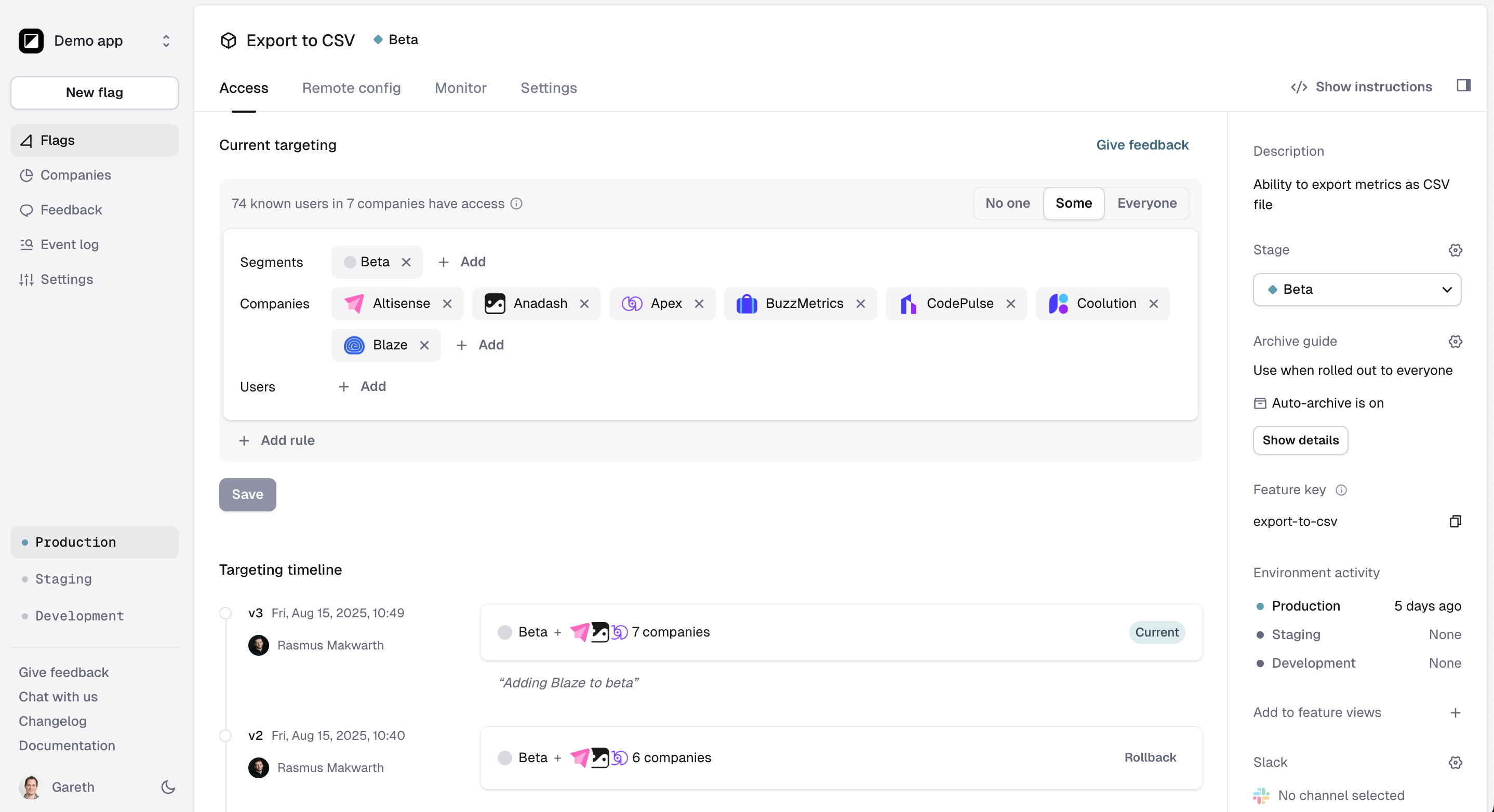
Reflag's access UI has been designed to cover the most common use cases in B2B companies.

The default access criteria are:

* Company segments
* Companies
* Users

The default access criteria let you add segments, companies, and users without additional configuration.

<figure><img src="/files/FXnaS7KKs7g25O1YdsWD" alt=""><figcaption></figcaption></figure>

## Advanced access rules

You can also create advanced access rules with the "+ Add Rule" button.

Advanced rules let you specify rollout percentages and create access rules using company attributes, user attributes, feature access, or other contexts. Advanced rules let you specify rollout percentages and create access rules using company attributes, user attributes, flag access, or other contexts.

### Conditions

Each access rule has a set of conditions. You can create as many rules with as many conditions as you’d like.

There are 5 types of conditions:

* `Company attribute`
  * `Company ID`
  * `Company name`
  * `Any user-defined custom attributes`
* `User attribute`
  * `User ID`
  * `Email`
  * `Any user-defined custom attributes`
* `Segment`
  * Existing segments that don’t use `First seen`, `Last seen`, or `Flag metrics` filters.
  * Segments can combine company and user conditions in the same audience.
  * You can include or exclude companies that are part of a segment.
* `Flag access`
  * Reuse access rules from another flag.
  * You can choose to include or exclude companies that have access to another flag.
* `Other context`
  * Set access rules based on custom data that does not belong to a company or user but rather a specific situation that a company or user is in, like an `eventID`.
  * Example:
    * You can supply `eventID` in the other context. Then, you create a context rule that only enables a feature when your users are in the context of a specific event with the given event ID.

### Examples

Here are examples of access conditions:

* Companies with Company IDs 1 and 2: `Company attribute: Company ID IS ANY OF [1,2]`
* Give access to newly created companies: `Company attribute: createdAt LESS THAN [30] DAYS AGO`
* Give access to users with the manager role at all companies: `User attribute: role IS [manager]`
* Give access to companies in the Pro plan segment: `Segment: In segment ['Pro']`
* Give access to companies in the Beta users’ segment: `Segment: In segment ['Beta users']`
* Give access to companies who already have access to the Huddle flag: `Flag access: Flag [Huddle] is enabled`
* Enable a flag for a single company but only when managing a particular event: `Company attribute: Company ID IS [42] AND Other context: eventID IS [641]`

<figure><img src="/files/gwHeTNrD4zevVCGX5gOo" alt="Reflag flag targeting rules"><figcaption><p>There are 5 different types of conditions to choose from.</p></figcaption></figure>

## Setting multiple access rules <a href="#setting-multiple-targeting-rules" id="setting-multiple-targeting-rules"></a>

You can create as many access rules as you like. Rules are made up of individual conditions.

Companies will get access to your flag if they meet the criteria of any of the access rules. For a rule to match, they must meet all the conditions of that rule. In other words, there’s an `OR` between the rules and an `AND` between the conditions.

### Example

We’ve added two rules. The first rule has two conditions while the second rule has a single condition.

If ***any*** rules match, the flag will be enabled for a given company or user. A rule matches if ***all*** conditions within it match.

Another way to say this is that there’s an `OR` between the rules and an `AND` between the conditions.

The rules you create will be different between [environments](#environments).

<figure><img src="/files/J4IWne5bJLsPPr6pGLjN" alt="An example targeting configuration with two rules."><figcaption><p>An example access configuration with two rules. In the first rule there are two conditions and one condition in the second rule. If any of the rules match and if all the conditions in a given rules match, the company/user will have access.</p></figcaption></figure>

## Specify rollout percentage

Select a rollout percentage, default `100%`, to give access to a percentage of companies that match the access rules.

Specifying `0%` will disable the flag for anyone.

### **Rollout percentages**

Rollout percentages are stable. If the initial rollout percentage is `1%` and you roll it out to `100%` before rolling it back to `1%`, the companies found in the `1%` rollout will be the same.

However, companies within rollout percentages aren’t consistent across flags. The companies found in a `1%` rollout percentage may be different for different flags. To roll out two flags to the same set of companies, use the `Flag access` condition.

**Example**

You have rolled out `Flag A` and `Flag B` to `10%` of the `Beta User` segment.

The set of companies within the `Beta User` segment with access to `Flag A` and `Flag B` will not be the same.

## Environments

You can switch between environments by clicking the environments in the left sidebar.

## Rolling back flag access changes

See previous access rules and roll back to past rules by reviewing the `Targeting timeline`.

Find past versions and click the `Rollback` button to reapply previous access rules.

Access rules that use segments are linked to the current version of the segment even if you roll back to a previous version of the access rules.

### **Example**

The `Beta customers` segment contains `40` companies. Version `#1` of the Huddles flag gives access to `25%` of companies in the `Beta customers` segment, or `10` companies, on January 1st.

On January 15th, you add `20` more companies to the `Beta customers` segment, bringing it to `60` companies.

On January 20th, version `#2` of the Huddles flag gives `50%` of companies in the `Beta customers` segment, or `30` companies, access.

The next day, you roll it back to version `#1`. Since the `Beta customers` segment now contains `60` companies, the flag will be available to `15` companies rather than `10`.


---

# Agent Instructions: Querying This Documentation

If you need additional information that is not directly available in this page, you can query the documentation dynamically by asking a question.

Perform an HTTP GET request on the current page URL with the `ask` query parameter:

```
GET https://docs.reflag.com/product-handbook/feature-rollouts/feature-targeting-rules.md?ask=<question>
```

The question should be specific, self-contained, and written in natural language.
The response will contain a direct answer to the question and relevant excerpts and sources from the documentation.

Use this mechanism when the answer is not explicitly present in the current page, you need clarification or additional context, or you want to retrieve related documentation sections.
