> For the complete documentation index, see [llms.txt](https://docs.reflag.com/llms.txt). Markdown versions of documentation pages are available by appending `.md` to page URLs; this page is available as [Markdown](https://docs.reflag.com/product-handbook/remote-config.md).
# Remote config
Learn more about remote config in Reflag
## What is remote config?
Remote config is a dynamic way to configure flags for different audiences. A flag's remote config consists of a set of **config values**. Each config value is a **key** — **payload** pair where the key is unique and the value is any valid JSON value. Both are supplied by you.
Config values have **environment-specific targeting rules** used by Reflag to match them against your users and companies.
Remote config reduces the need for code changes. It lets you test and adjust flag behavior without redeploying your application.
This is what remote config looks like in React:
{% code fullWidth="false" %}
```tsx
function AISummarizerRemotelyConfigured({copy}: {copy: string}) {
const { config: { payload } } = useFlag('my-ai-flag');
return
}
```
{% endcode %}
{% hint style="info" %}
Remote config works independently from [access rules](/product-handbook/feature-rollouts/feature-targeting-rules.md). In other words, remote config is not affected by whether the user has access to the flag.
{% endhint %}
## Config values
Config values consist of:
* A mandatory unique string **key**, supplied by you. The key is unique per flag. If you just need a string configuration, you can use the key by itself.
* An optional JSON **payload**, that can be any valid JSON value: `null`, `string`, `number`, `array` or `object`
* Targeting rules which are environment-specific, allowing you to target different config values to different users/companies in different environments
* Default setting, which tells Reflag which config value to use as fallback if no targeting set matches the given user/company context
{% hint style="danger" %}
Do not store sensitive data in the key or the payload of the config value even if the flag is marked as **secret.**
Sensitive data, like API keys or passwords should be managed with proper care outside of Reflag
{% endhint %}
The config values are shared across all environments. Any new value that you add in one environment is automatically added to other environments, but without targeting rules, making it disabled there by default.
Remote config with three values in the Production environment
In the image above, a flag is set up with three config values. This example configures LLM settings for an AI workflow. The `gpt-4o` value is the default and is served with requests that do not match a more specific rule. The `claude-3-7-sonnet` value is served to users in `Apex` and `Blaze`. The `gpt-5` value is served to `Adrian Borer` and the `Logix` and `Hightrix` companies.
{% hint style="info" %}
We recommend that you choose simple text values for config value keys. Avoid spaces and special characters unless you plan to use the key as display text in your application.
{% endhint %}
## Matching algorithm
* Users, companies and segments can appear only once in the targeting rules for each environment. This means that you cannot configure two distinct config values in the same environment to target the same entity explicitly
* Matches are not evaluated in the order of their appearance, but in order of their **specificity**:
* Directly specified users match first
* Then, directly specified companies match
* Then, going top to bottom in order of appearance of the config values, segments specified are matched against the company
* Finally, if no rule is matched, the default one is used
* **`Other context`** is not taken into account when evaluating config value targeting rules
* *Percentage rollout* is not supported for remote config
## Usage scenarios
In addition to the AI model configuration example above, this section shows some other scenarios that can be solved by using remote config.
### Basic flag configuration
Sometimes it is useful to store flag-specific config that your application can use. This is true even if you do not plan to target different config values to different users. You can create a single config value, set it as **default**, and store any JSON payload in it. In that case, the key can be any value you choose.
On the application side, you can check if the user has access to the flag, and use the accompanying config when needed.
{% hint style="info" %}
Since config values are evaluated independently from access, your application can still use remote config even if the flag is disabled for the user. For example, the payload can explain why the flag is unavailable or offer an alternative path.
{% endhint %}
### Multivariate flags
The **multivariate flag** is a classic remote config use case. To create one:
1. Create a flag and define its access rules, if any.
2. Create the "*variants*" by using config values. Each config value has its key representing the variant name.
3. Adjust the targeting rules on each config value.
4. Payloads can be be ignored if additional configuration is not required for each variant.
### Entitlements
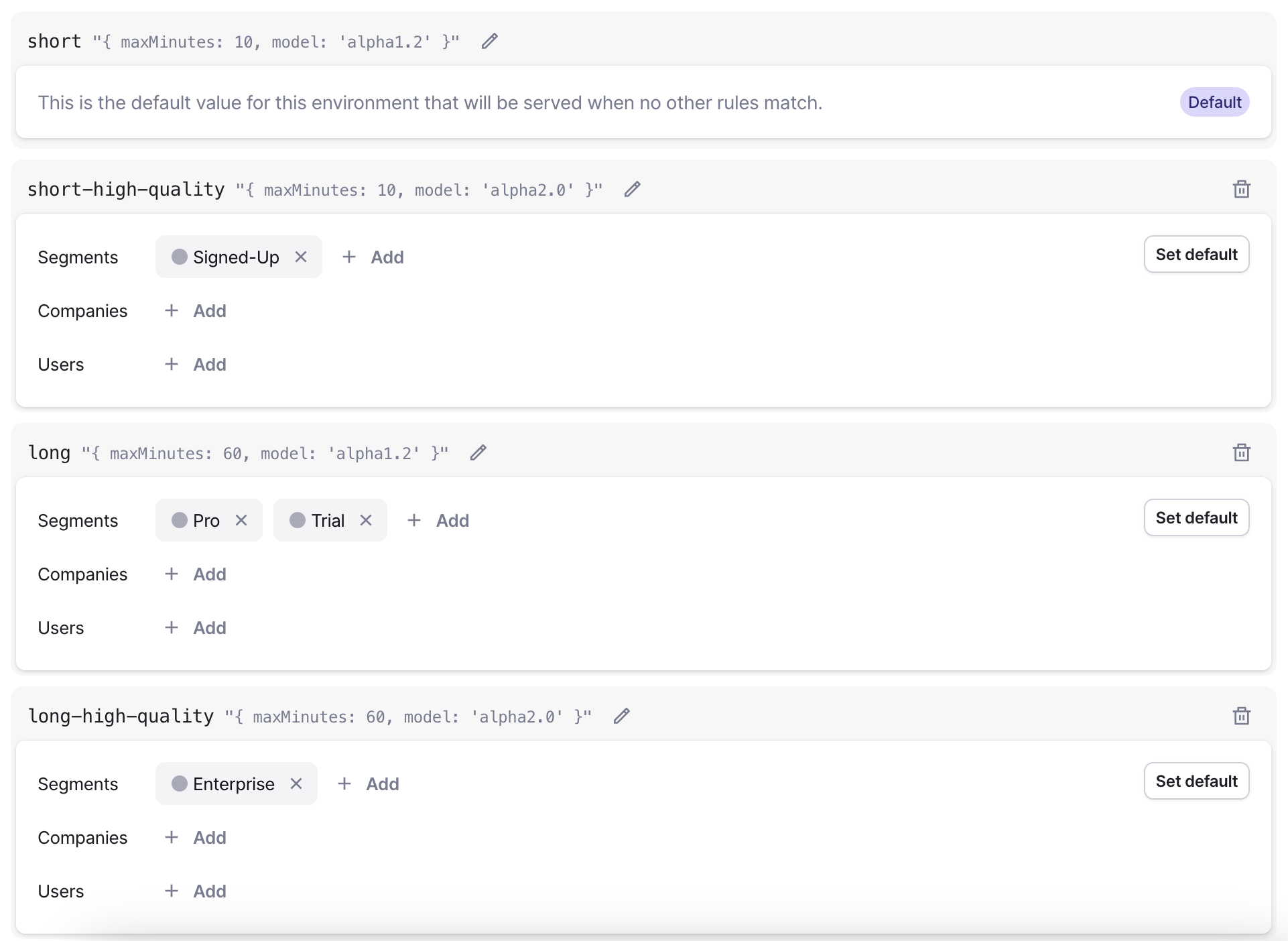
Remote config is a strong fit for [entitlements scenarios](/product-handbook/feature-entitlements.md). For each flag you create, you can add config values that target different **companies** or **company segments**. Each config value can then define a different access tier or usage limit.
Example of AI model variations by subscription tier
The image above shows a flag called "*AI Transcripts*" that serves four customer categories: "*Not customers*", "*Beta*", "*Business Plan*", and "*Enterprise Plan*". Each category receives a different tier.
## Start using remote config
First, [create your first flag](https://app.reflag.com/env-current/flags/new), if you have not already. Then open your flag and click the "*Remote config*" tab.
Click "Create config value" to start
Once you have set up your flag and config values, configure the targeting rules in your other environments as well.
Finally, use [any of our SDKs](/supported-languages/overview.md) to access the flag and its config in your application.
---
# Agent Instructions
This documentation is published with GitBook. GitBook is the documentation platform designed so that both humans and AI agents can read, navigate, and reason over technical content effectively. Learn more at gitbook.com.
## Querying This Documentation
If you need additional information that is not directly available in this page, you can query the documentation dynamically by asking a question.
Perform an HTTP GET request on the current page URL with the `ask` query parameter, and the optional `goal` query parameter:
```
GET https://docs.reflag.com/product-handbook/remote-config.md?ask=&goal=
```
`ask` is the immediate question: it should be specific, self-contained, and written in natural language.
`goal` is optional and describes the broader end goal you are ultimately trying to accomplish on behalf of the user. GitBook uses it to tailor the answer towards what is most useful for that goal.
The response will contain a direct answer to the question and relevant excerpts and sources from the documentation.
Use this mechanism when the answer is not explicitly present in the current page, you need clarification or additional context, or you want to retrieve related documentation sections.